Render it: turn any piece into video, or repaint it in any look
Render is a new way out of the studio: videos of your piece in every shape, drawn a frame at a time, free. Switch on Perlin Paint and a model repaints the scene as a video or an image, in whatever look you describe. Here’s what it does, how to use it, and scenes to try it on.
7 min read
Every piece on VYBE.ART has a new way out of the studio. It's called Render, and it turns a piece into files you keep: videos in any shape with their sound, or images of one moment, each drawn a frame at a time.
Render also has a switch called Perlin Paint. Turn it on and a model paints over your scene: the same shapes and the same movement, in whatever look you describe. It's the part I can't stop playing with, so let's start there.
One scene, any look
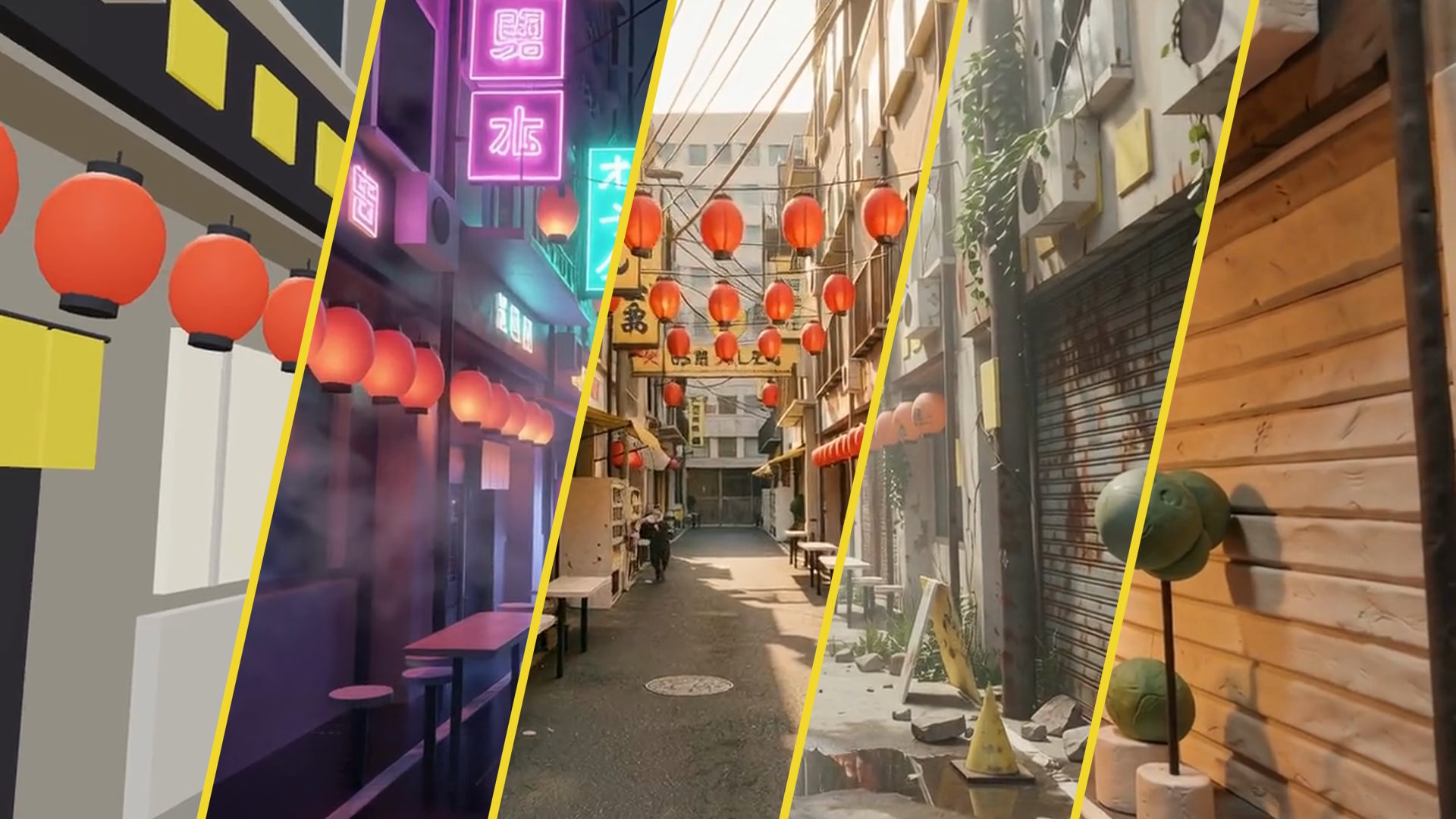
This is Backstreet, from the gallery. It's a five second walk down a Japanese backstreet, built from plain blocks with a string of lanterns overhead. Nothing about it is finished, and that's the point. Watch what happens to it:
All four are the same piece. The buildings stand where the blocks stood, the lanterns hang where they hung, and the camera takes the same walk. Only the description changed. For the neon one it was:
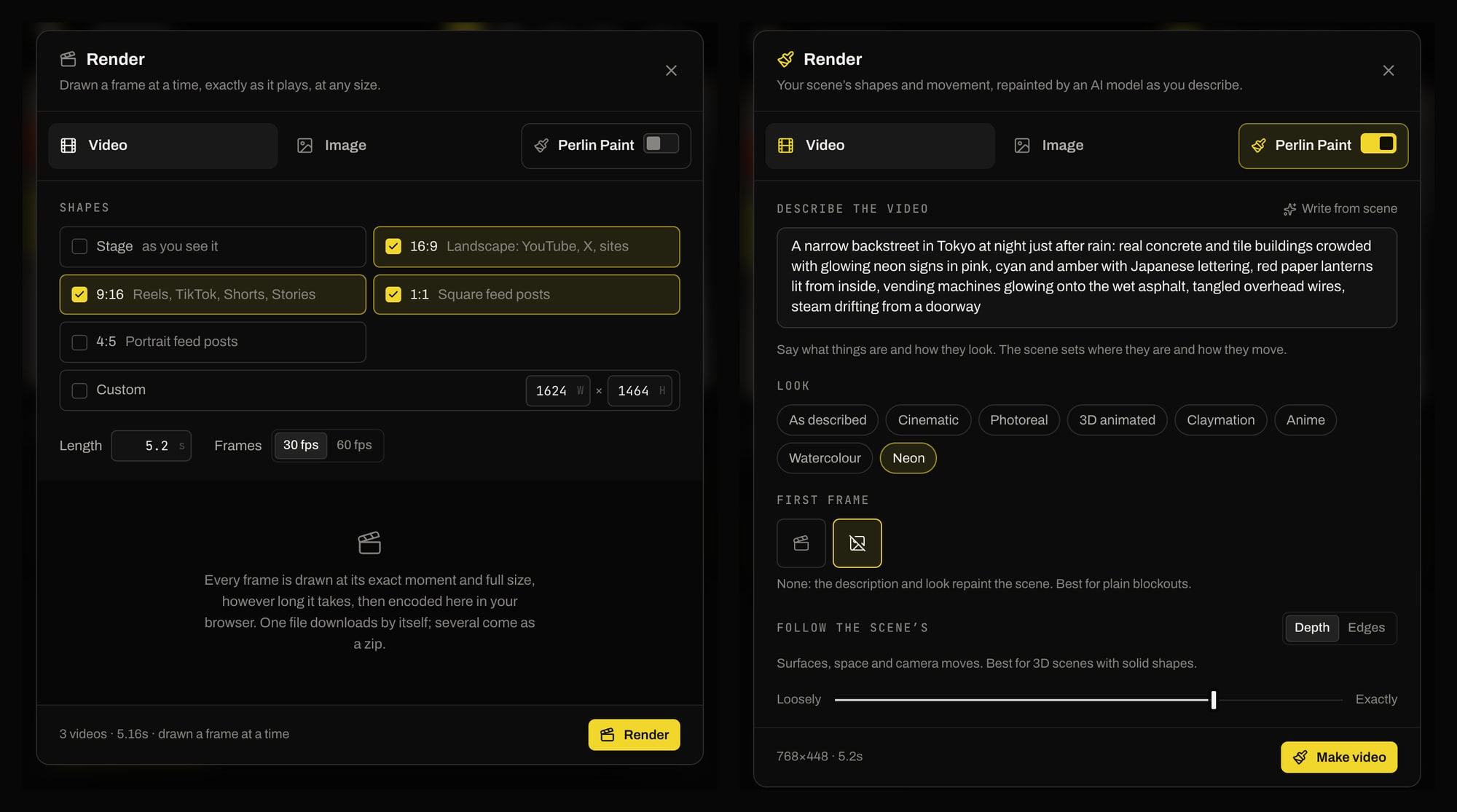
A narrow backstreet in Tokyo at night just after rain: real concrete and tile buildings crowded with glowing neon signs in pink, cyan and amber with Japanese lettering, red paper lanterns lit from inside, vending machines glowing onto the wet asphalt, tangled overhead wires, steam drifting from a doorway
The other three asked for a 1970s shopping alley on faded colour film, the same street abandoned for decades and taken back by nature, and a plasticine model on a tabletop set. Every description is on Backstreet's page, where you can open the scene and render it yourself.
So here's how to think about it: your scene is the layout and the movement, and your words are the look. Block a shot out in plain shapes, or ask Perlin to, and decide what it looks like afterwards. Then change your mind as often as you like.
It works on anything that moves
A camera move is one kind of scene. Stair Bounce is another: a ball bouncing down a flight of stairs, squashing as it lands. Here it is in a sunlit courtyard, an anime school at sunset and a watercolour garden:
And a logo. VYBE Drop is our own mark landing on a stage, with its letters flipping up beside it. Rendered three times, it's gold and marble under spotlights, a set of inflatable toys, and a sculpture carved from glacier ice:
Both are in the gallery, with the rest of the scenes made to render.
Paint a picture of it
Pick Image instead of Video and Perlin Paint makes a picture of one moment of your piece, in about half a minute.
Block Town is the one to try it on, because you build the scene by playing with it. It's a toy town on a seven by seven board: click a square to turn it from grass into a cottage, a tall house, a tower, trees, a windmill or a pond, and drag to turn the view. When you like your town, press Keep for render, open Render, and have it painted:
Every cottage, tree and windmill is where the blocks put it. And because you built the town, nobody else has that picture.
A painted image can open a video too. Choose it as the video's first frame and the video starts from that picture, so the look is settled before anything moves. It's how the Backstreet videos above were made: the first frame was painted as an image, then each video was made from it.
Or render it exactly as it plays
With Perlin Paint off, Render makes videos of your piece exactly as you made it. Tick the shapes you want and you get a video in each. Tick several and they come together in one zip:
| Shape | Size | Made for |
|---|---|---|
| 16:9 | 1920 × 1080 | YouTube, X and sites |
| 9:16 | 1080 × 1920 | Reels, TikTok, Shorts and Stories |
| 1:1 | 1080 × 1080 | Square feed posts |
| 4:5 | 1080 × 1350 | Portrait feed posts |
| Custom | Up to 4K | Anything else |
Videos run at 30 or 60 frames a second, for as long as your timeline or any length you set up to two minutes, with the piece's music and sounds mixed in. If the piece has variations, you get every shape in every variation: three shapes and two versions make six videos.
This isn't a screen recording. The piece runs again out of sight on a clock that waits for each frame, so every frame is drawn at its exact moment and at full size, however long it takes. A heavy 3D scene comes out as smoothly as a light sketch, and nothing is dropped if you switch to another tab. It all happens in your browser, so there's nothing to upload and no queue. And it's free.
How to render a piece
- Open Render. In the studio, open Export and choose Render. It's in the Motion panel's header too.
- Pick Video or Image. A video follows your timeline. An image is one moment of it.
- Switch on Perlin Paint, if you want it painted. The description box starts with one written from your scene. Change it to say what things are and how they look, then pick a look: Cinematic, Photoreal, 3D animated, Claymation, Anime, Watercolour or Neon.
- Make it. Try ideas in Draft, then make the keeper in Full. An image takes about half a minute, a draft video a minute or two. Once your scene has been sent you can close the page, and the bell tells you when it's ready.
- Find it in your library. Every painted video and image lands in your asset library, under Videos or Images.
The Render guide has every setting.
Getting a good render
A few things worth knowing before your first one:
- Describe materials and light, not positions. The scene already says where things are and how they move. Your words are for what they're made of, the time of day and the weather.
- Starting from plain blocks? Set First frame to none. A new picture is painted from the scene's shapes alone. If your piece already has colours you want kept, start from the scene instead, and only what you ask for changes.
- Depth for solid 3D, Edges for flat. Following the scene's depth suits 3D shapes and camera moves. Following its edges suits flat, graphic and particle pieces.
- Draft first. A draft is quick, so use it to find the description. Try again makes another with the same settings, and the pencil puts a take's settings back so you can change one thing.
- Keep it short. A painted video is 3 to 10 seconds, so think in shots: one move, one idea.
Scenes to start from
Each of these opens the studio with the idea in Perlin's prompt box. Make the scene, then open Render and paint it:
What it costs
Rendering a piece as it plays is free. Perlin Paint runs on a GPU, so it's paid for in Vybe Tokens: Render says about how many before you start, you're charged what the GPU time came to, and a render that fails costs nothing. New accounts start with 150 Vybe Tokens.
So open a scene, describe a look, and see what comes back. Then show us: I'd love to see what you render.
Your turn / Free to start
Describe it. Perlin builds it.
Art, games and worlds you can step inside, from one sentence. Play it, bend it, put it on a timeline, share it.